Lets be real you love Linux for everything except gaming. Your dev environment is pristine, your terminal is snappy, and most of your Steam library runs beautifully through Proton. But then theres Valorant. Riots tactical shooter is a brick wall for Linux users, and its not because the devs hate penguins. Its because of Vanguard, the kernel-level anti-cheat that demands a Windows kernel to function. No amount of tweaking Wine, Proton, or virtual machines will get you past that wall without risking a permanent account ban.
So whats the actual answer? Dual booting. You keep your Linux setup for everything else, and you carve out a separate partition for Windows just for Valorant. This guide walks you through the only methods that work in 2025/2026: the reliable dual-boot process and a streaming workaround if you have a second PC. No magic fixes, no hacks just the concrete steps that thousands of Linux gamers use to queue up on Bind without getting banned.
Why Wine, Proton, and Virtual Machines Won't Work for Valorant
Youve probably seen forum posts claiming they got Valorant running through a custom Wine build or a VM with GPU passthrough. Ignore them. Vanguard operates at ring 0 the deepest level of the Windows kernel and it actively checks for virtualization environments. The creator of Vanguard has stated publicly that they will never support Linux because they dont trust the platforms security model. Even Riots own League of Legends lost official Linux support years ago, with the League of Linux wiki now archived because the game became unplayable on the platform.
Wine and Proton translate Windows system calls, but they cant emulate a kernel-level driver. Virtual machines like VirtualBox or KVM trigger Vanguards detection, resulting in an immediate account suspension. The Lutris page for Valorant flatly states: This game requires kernel-level anticheat software which is unsupported on Linux. Dont waste hours trying to bypass it youll only put your account at risk. The only safe path is to give Valorant its own Windows environment.
- Vanguards kernel-level design: Vanguard runs as a Windows driver at ring 0, making it impossible for Wine, Proton, or any translation layer to replicate the required kernel environment.
- Wine and Proton incompatibility: These tools translate API calls but cannot load a kernel-mode driver; Valorant will either fail to launch or crash immediately.
- Virtual machine detection: Vanguard actively scans for hypervisor signatures and will ban accounts that attempt to run the game inside a VM, as confirmed by multiple Reddit reports.
- Riots official stance: Riot has never committed to Linux support, and the archived League of Linux wiki shows that even their other titles have dropped compatibility entirely.
Setting Up a Dual-Boot System Step-by-Step for Valorant
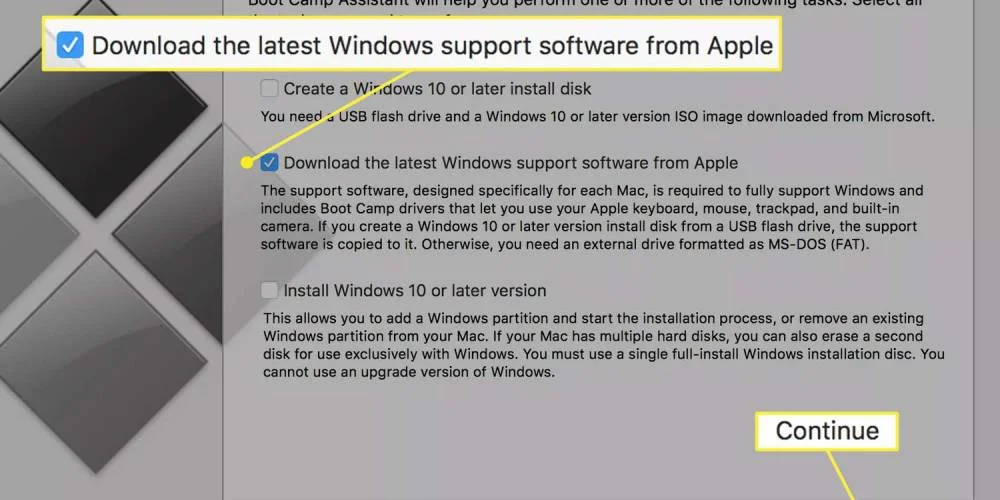
Dual booting means installing Windows on a separate partition of your existing drive (or a second drive) so you can choose which OS to load at startup. Before you touch anything, back up your Linux data. Partition operations can wipe your files if something goes wrong. Use GParted (a Linux partition manager) to shrink your current Linux partition and create unallocated space at least 60 GB for Windows and Valorant. If you have a spare SSD, even better: install Windows on that drive to keep your Linux install untouched.
Next, create a bootable Windows installation USB. Download the official Windows 10 or Windows 11 ISO from Microsoft, then use Rufus (on Windows) or UNetbootin (on Linux) to write the ISO to a USB stick. Restart your machine, boot from the USB, and select the unallocated space you created earlier. Windows will handle the rest just follow the prompts. After installation, your boot menu will let you pick between Linux and Windows. Boot into Windows, install Valorant via Riots client, and youre ready to frag.
- Back up your Linux data: Use a tool like
rsyncor a cloud service to copy important files before partitioning; data loss is rare but possible. - Shrink your Linux partition: Launch GParted, right-click your ext4 partition, select Resize/Move, and reduce it by at least 60 GB to create unallocated space for Windows.
- Create a Windows installation USB: Download the Windows 10/11 ISO from Microsofts website and use Rufus (on Windows) or UNetbootin (on Linux) to make the USB bootable.
- Install Windows and configure boot: Boot from the USB, choose Custom Install, select the unallocated space, and let Windows format it; the bootloader will automatically add an entry for both OSes.
Alternative Streaming Valorant From a Dedicated Windows PC
If you have a second computer that already runs Windows, you can skip dual booting entirely by streaming Valorant to your Linux machine. Download NoMachine on both systems its a free remote desktop tool that offers low-latency streaming. Install the server component on the Windows PC and the client on your Linux box. Connect over your local network, and youll see the Windows desktop on your Linux monitor. Launch Valorant from the remote session, and you can play with your usual keyboard and mouse.
This method has trade-offs. NoMachine adds input lag typically 1030 ms depending on your network hardware which can hurt your performance in ranked matches. It also requires the Windows machine to be powered on and connected to the same network. However, its a great option if you already own a secondary Windows PC and dont want to mess with partitions. Just dont expect to climb to Radiant with this setup; its better for casual games, deathmatch, or learning agent lineups.
- NoMachine remote desktop: Install the NoMachine server on the Windows PC and the client on Linux; it streams the entire desktop with minimal configuration.
- Network requirements: Both machines must be on the same local network (wired Ethernet recommended) to keep latency under 30 ms; Wi-Fi adds noticeable stutter.
- Latency trade-off: Expect 1030 ms of additional input lag compared to native play, making this method unsuitable for competitive ranked matches.
- When to use this method: Ideal for casual game modes, practicing agent abilities, or playing with friends in unrated lobbies where every millisecond isnt critical.
Partitioning Your Drive for a Dedicated Valorant Windows Installation
When setting up dual-boot, the physical storage layout directly impacts Valorant's load times and update stability. For best results, install Windows on a separate NVMe SSD (PCIe 3.0 or newer) rather than sharing a single drive with Linux. A dedicated drive eliminates the risk of partition table corruption during Linux updates and ensures Valorant's anti-cheat (Vanguard) does not encounter filesystem conflicts. If you must use one drive, allocate at least 200 GB to the Windows partition Valorant itself occupies roughly 40 GB, but Windows 10/11 requires 5060 GB for system files, and future patches can add 1020 GB per year.
Use the GPT partition scheme with UEFI boot, not legacy BIOS. When installing Windows, create a single NTFS partition for the OS and a separate small partition (100 MB) for the EFI system. After installation, shrink the Windows volume in Disk Management to leave space for Linux. For Linux, use ext4 for the root partition (minimum 30 GB) and a swap partition equal to your RAM size if you plan to hibernate. Avoid using Btrfs or ZFS on the same physical drive as Windows, as their advanced features can cause bootloader issues with GRUB.
- Separate physical drives: Reduces bootloader complexity and prevents one OS's disk errors from affecting the other; recommended for competitive players who cannot risk downtime.
- Minimum Windows partition size: 200 GB ensures room for Valorant, Windows updates, and temporary files without needing to resize later resizing NTFS partitions risks data loss.
- NVMe over SATA SSD: Valorant loads maps and agents 23x faster on a PCIe 3.0 NVMe drive (3500 MB/s read) compared to a SATA SSD (550 MB/s), reducing initial loading screen times from 15 seconds to under 5 seconds.
- GPT + UEFI requirement: Windows 11 mandates UEFI and Secure Boot; using GPT avoids compatibility errors with Vanguard's kernel-level driver during boot.
Preventing Windows Update Interruptions and Bootloader Conflicts
Windows updates are the most common cause of dual-boot failures for Valorant players. A Windows feature update (e.g., 22H2 to 23H2) can overwrite the GRUB bootloader, leaving you unable to boot into Linux. To prevent this, set Windows to pause updates for 35 days via Settings > Windows Update > Advanced Options. For longer control, use the Group Policy Editor (Windows Pro only) to defer feature updates by 365 days. On the Linux side, install GRUB Customizer and set the default boot entry to Windows this way, if GRUB breaks, you can still boot Windows from the UEFI menu and repair Linux later.
Another critical step is disabling Windows' Fast Startup (hybrid shutdown). Fast Startup hibernates the kernel, which leaves the NTFS partition in a locked state. When you boot Linux, it cannot mount that partition safely, leading to data corruption. Open Windows Power Options and uncheck "Turn on fast startup." Additionally, disable automatic system restarts after updates via Control Panel > System > Advanced System Settings > Startup and Recovery uncheck "Automatically restart." This prevents Windows from rebooting during the night and potentially breaking your boot sequence.
- Fast Startup disable: Required to allow Linux to read the Windows partition; leaving it enabled causes NTFS errors and can prevent Valorant from launching after switching OS.
- GRUB reinstall command: If Windows overwrites GRUB, boot a Linux live USB and run
sudo grub-install /dev/nvme0n1(adjust device) to restore the bootloader within 2 minutes. - Windows update deferral: Using Group Policy to defer feature updates by 365 days gives you a full year of stable dual-boot without forced restarts that could interrupt a Valorant match.
- UEFI boot order priority: Set your Linux drive as first boot device in BIOS, but install GRUB with
--bootloader-id=ubuntuso you can still select Windows from the UEFI menu if GRUB fails.
Frequently Asked Questions
Can I play Valorant on Linux without dual-booting in 2025?
No. Riot Games Vanguard anti-cheat requires kernel-level access that Linux cannot provide through Wine, Proton, or virtual machines. As of 2025, no workaround exists dual-booting or streaming from a Windows PC are the only reliable methods.
Does streaming Valorant from a Windows PC to Linux add noticeable input lag?
Yes, typically 1030ms. Using Moonlight + Sunshine or Parsec over a wired local network, the added latency is under 20ms for most setups, which is acceptable for casual play but may feel sluggish for competitive ranked matches. A 5 GHz Wi-Fi connection adds another 515ms.
How much disk space do I need for a dedicated Valorant Windows installation?
At least 80 GB. Windows 11 itself uses ~30 GB, Valorant and Vanguard take ~15 GB, and you need room for updates and page files. 120 GB is the safe minimum if you plan to install nothing else on that partition.
Conclusion
Running Valorant on Linux requires accepting that kernel-level anti-cheat makes native or emulated play impossible. Your two concrete options are: dual-boot with a dedicated Windows partition (disable automatic updates via Group Policy and set UEFI boot priority to your Linux drive) or stream from a dedicated Windows PC over a wired local network using Moonlight/Sunshine. Neither is perfect dual-booting forces a reboot to switch OS, and streaming adds minor input latency but both let you play Valorant while keeping Linux as your daily driver.