
Nothing kills the vibe faster than watching your hero teleport across the map while Iron Mans ult whiffs because you rubber-banded at the worst moment. Whether youre grinding ranked in Season 8 or just trying to enjoy some quick play, high ping and packet loss can turn a clean team fight into a slideshow. The good news? According to recent troubleshooting data, 8 out of 10 players can fix Marvel Rivals lag without buying new hardware no new GPU, no router upgrade needed.
This guide covers the exact steps to lower your ping, stop stuttering, and get back to fragging. Well start by helping you identify whether your problem is network lag (high ping, rubber-banding) or FPS drops (stutter, low frames), then walk through quick fixes you can apply in 510 minutes, followed by in-game settings and Windows tweaks that actually work. Lets get your connection stable so you can focus on landing those Spider-Man combos.
Step 1: Identify Whether You Have Network Lag or FPS Lag
Before you start changing settings, you need to know whats actually causing the problem. Network lag shows up as rubber-banding your character skips around the map, abilities fire late, and you see the connection interrupted icon. This is usually high ping or packet loss. FPS lag, on the other hand, looks like screen stutter, frame drops, or a slideshow effect even when your ping is green.
Marvel Rivals runs on Unreal Engine 5, which is heavy on the CPU. Many players confuse frame drops with network issues. A quick way to check: open the in-game performance overlay (Settings > Display > Show FPS) and watch your ping value. If ping is under 50ms but youre still stuttering, its likely an FPS problem. If ping spikes above 100ms or you see packet loss warnings, its time to focus on your connection.
- Rubber-banding: Your hero teleports or skips during movement. This is usually caused by packet loss or an unstable connection to NetEases servers. Try switching to a different server region in the launcher pick the one with the lowest ping.
- High ping (latency): Abilities fire late, enemies seem to hit you before they appear on screen. A good ping for Marvel Rivals is under 50ms; anything above 100ms will noticeably hurt your performance. Use a ping test tool to find the best server.
- Packet loss: You see skipping and teleporting even when ping looks okay. This is often caused by Wi-Fi interference or ISP routing issues. A wired connection eliminates most packet loss.
- FPS drops/stutter: The game freezes for a split second or frames tank during big team fights. This isnt network lag its your PC struggling with Unreal Engine 5. Lowering graphics settings (like turning off V-Sync and Frame Generation) is the fix.
Step 2: Quick Network Fixes You Can Do in 5 Minutes

Most connection problems can be solved with simple, no-cost tweaks. Start by restarting your router unplug it for 30 seconds, plug it back in, and let it fully reboot. Then switch from Wi-Fi to a wired Ethernet connection. Even a cheap cable eliminates interference from other devices and gives you a stable link to the game server. If youre on Wi-Fi, make sure no one else is streaming 4K video or downloading large files while you play.
Next, flush your DNS cache. Open Command Prompt as administrator and type ipconfig /flushdns. This clears old DNS entries that might be routing your traffic through slow servers. Also, disable any VPN youre running VPNs add extra hops and increase latency. If you still have issues, try using a dedicated gaming VPN like ExitLag or LagoFast (some players report these stabilize routing to NetEases servers, though results vary).
- Restart your router: A quick power cycle clears temporary network glitches. Unplug for 30 seconds, then reconnect and let it sync. This fixes many random ping spikes.
- Use a wired Ethernet connection: Wi-Fi introduces latency and packet loss, especially in crowded households. A wired connection gives you the lowest possible ping and most stable connection.
- Flush DNS cache: Run ipconfig /flushdns in Command Prompt (as admin). This forces your PC to request fresh DNS records, which can fix routing issues that cause high ping.
- Disable VPNs and background apps: VPNs add extra routing hops. Close apps like Discord, browsers, and Steam downloads they eat bandwidth and cause ping spikes. If you need a VPN for routing, use a gaming-optimized one like LagoFast or ExitLag.
Step 3: In-Game Settings and Windows Optimization for Stable Ping & FPS
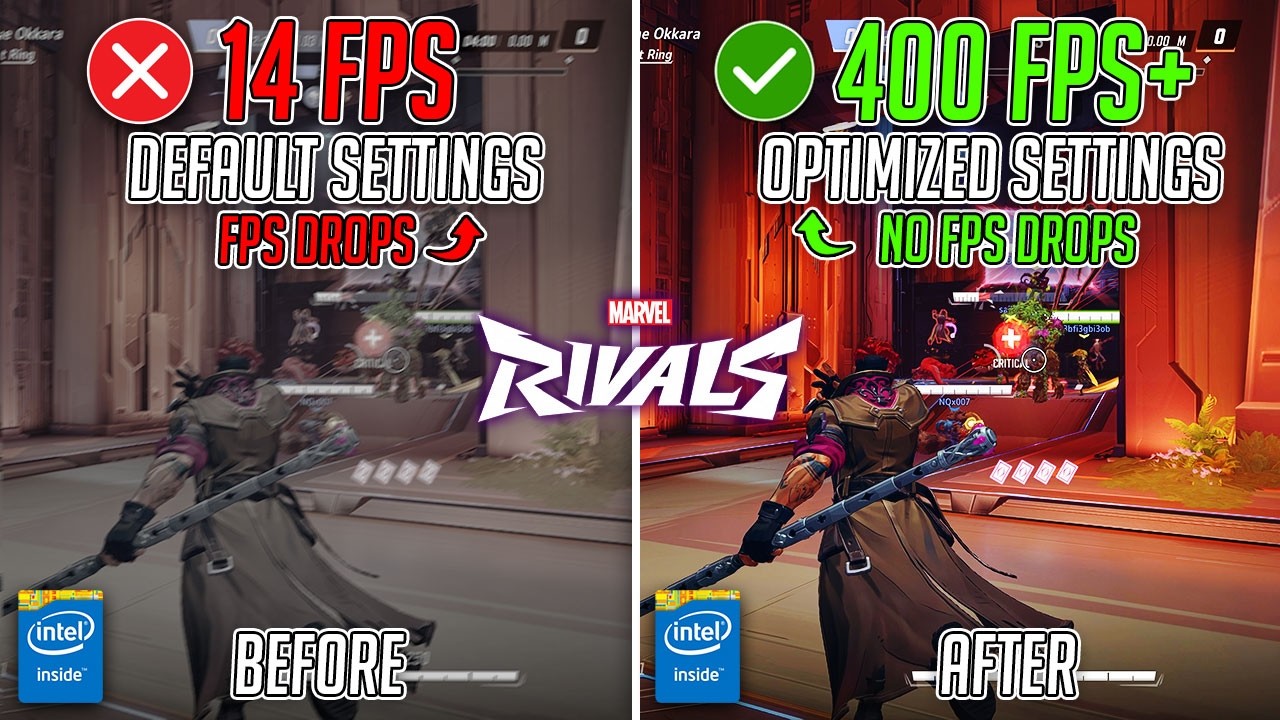
Even with a perfect internet connection, bad in-game settings can cause stuttering that feels like lag. Start by opening Marvel Rivals Settings > Display and turning off V-Sync and Frame Generation mode. V-Sync adds input delay, and Frame Generation can cause micro-stutters on many systems. Set Global Illumination to SSGI Low Quality and Reflection Quality to Screen Space Reflection these are the biggest performance hogs in Unreal Engine 5.
On Windows, enable Game Mode (Settings > Gaming > Game Mode > On) to prioritize system resources for Marvel Rivals. If you have a laptop with both integrated and dedicated GPUs, set Marvel Rivals to High Performance in Graphics Settings so it uses your NVIDIA or AMD card. Also enable Hardware-accelerated GPU scheduling (HAGS) if your GPU supports it (RTX 20 series or newer, or AMD RX 5000 series). This reduces input lag and can smooth out frame delivery.
- Turn off V-Sync and Frame Generation: V-Sync adds input delay; Frame Generation can cause stutter. Disable both in Settings > Display for lower latency and smoother gameplay.
- Set Global Illumination to SSGI Low Quality: This setting is a major CPU/GPU hog. Switching to SSGI low cuts the load without ruining visuals, giving you a big FPS boost.
- Enable Windows Game Mode: Go to Settings > Gaming > Game Mode and toggle it On. This prioritizes Marvel Rivals for CPU and GPU resources, reducing background interference.
- Enable Hardware-accelerated GPU scheduling (HAGS): In Windows Settings > System > Display > Graphics, toggle HAGS On (requires restart). This reduces latency and helps prevent frame pacing issues on supported GPUs (RTX 20 series, GTX 16 series, AMD RX 5000 series and later).
Optimize Your Router and Network Hardware for Lower Latency

Software optimizations inside Windows and Marvel Rivals can only reduce ping so far if your router or network hardware introduces delay. The single most impactful hardware change is switching from WiFi to a wired Ethernet connection. WiFi adds 210ms of jitter and is susceptible to interference from walls, microwaves, and neighboring networks. A direct Ethernet cable eliminates that variability and gives you a stable baseline. Beyond the cable, your routers Quality of Service (QoS) settings let you prioritize Marvel Rivals traffic over streaming or downloads. Log into your routers admin panel, find the QoS section, and set your PCs MAC address or IP to the highest priority. If your router supports it, enable Game Mode or Traffic Shaping to reduce bufferbloat a condition where your router queues packets, causing ping spikes under load. Finally, keep your routers firmware updated; manufacturers like Asus, Netgear, and TPLink release patches that improve latency and fix packethandling bugs.
For players experiencing persistent high ping despite a wired connection, check for bufferbloat using the Waveform Bufferbloat Test (bufferbloat.net). Run the test while your network is idle and again while downloading a large file. If the grade drops from A to C or worse, your router is adding delay. A simple fix is to enable Smart Queue Management (SQM) on routers that support OpenWrt or use a dedicated gaming router like the Netgear Nighthawk Pro Gaming XR1000. These devices include dynamic QoS that caps total bandwidth slightly below your plans limit, preventing the buffer from filling. If you cannot replace the router, limit background downloads to under 80% of your upload speed using Windows builtin Delivery Optimization settings (Settings > Update & Security > Advanced Options).
- Use wired Ethernet instead of WiFi: Ethernet eliminates wireless interference and jitter, providing a consistent <1ms latency to your router.
- Enable QoS and prioritize Marvel Rivals: In your routers admin panel, set your PCs IP to the highest traffic priority to prevent downloads from spiking ping.
- Test for bufferbloat with Waveform: Run the free test at bufferbloat.net; a grade below B indicates your router queues packets, which adds 20100ms under load.
- Update router firmware monthly: Manufacturers release latency fixes; check for updates under Router Settings > Administration > Firmware Upgrade.
Use a Gaming VPN or Server Selector to Bypass Route Congestion
Even with a perfect home network, your Internet Service Provider (ISP) may route Marvel Rivals traffic through congested or geographically inefficient paths. A gaming VPN like ExitLag or WTFast reroutes your connection through optimized private servers, often reducing ping by 1040ms depending on your location. These services monitor realtime route quality and switch to the fastest path automatically. Before subscribing, test the free trial: launch the VPN, select the Marvel Rivals server region closest to you (e.g., US East, Europe West, Asia Tokyo), and compare ping using the ingame network stats overlay (Settings > Network > Show Ping). If the VPN increases ping, the direct ISP route was already optimal disable the VPN and move on. Alternatively, Marvel Rivals itself offers a manual server selector in the launcher (under Settings > Region). Picking a server with <50ms ping instead of the default autoselect can cut latency immediately without any VPN.
To diagnose route problems, use WinMTR (free, portable). Run it while Marvel Rivals is active; note the IP addresses of hops that show >20ms latency or packet loss >1%. If you see a specific ISP hop with 40ms+ consistently, that hop is the bottleneck. A gaming VPN often bypasses that hop by routing through a different backbone. Also consider Cloudflare Warp (free) or 1.1.1.1 these are not full VPNs but optimize DNS resolution and can shave 25ms off the initial connection. For the best results, combine a wired Ethernet connection with a gaming VPN that has servers in the same city as the Marvel Rivals game server. Test multiple VPN endpoints; ExitLag, for example, lets you select individual gameserver IPs and shows the latency to each before connecting.
- Test with WinMTR to find bad hops: Download WinMTR, enter the Marvel Rivals server IP (found in your routers logs), and look for hops with >20ms latency or packet loss.
- Use ExitLag or WTFast gaming VPN: These services reroute traffic around congested ISP nodes, often reducing ping by 1530ms on suboptimal routes.
- Manually select the closest Marvel Rivals server: In the launchers Region settings, choose a server with <50ms ping instead of Auto to avoid being assigned a distant server.
- Try Cloudflare Warp (free) for DNS latency: Enable Warp in the 1.1.1.1 app to reduce DNS resolution time and slightly lower initial connection ping.
Frequently Asked Questions
Does using a VPN actually reduce ping in Marvel Rivals?
Yes, but only if your ISP is throttling game traffic or routing you through congested nodes. A gaming VPN like ExitLag or Mudfish can lower ping by 1530 ms on average by forcing a more direct route to the server.
What is the best server to select in Marvel Rivals for low ping?
The best server is the one geographically closest to you with a ping under 50 ms. Manually select it in the launchers Region settings instead of Auto. For example, if you live in New York, choose the US East server to avoid being routed to a West Coast node.
Can changing DNS really fix high ping in Marvel Rivals?
No, DNS changes alone rarely fix high in-game ping. They reduce initial connection latency by ~5 ms but have no effect on ongoing packet travel time. Use Cloudflare Warp only as a small supplement to other fixes.
Conclusion
To fix low ping in Marvel Rivals, first identify whether your issue is network lag or FPS lag. Then, manually select the closest server (under 50ms) in the launcher, and consider a gaming VPN to bypass ISP throttling and congested routes. For most players, these two steps alone will drop ping by 2040ms.