
You're sprinting through World's Edge, you hear footsteps, you swing around to beam the enemy and your screen freezes for half a second. That stutter just cost you the fight, and it's not your aim that's the problem. If you want to squeeze every possible frame out of your PC in Apex Legends Season 29, you need to stop guessing and start using settings that actually work.
Here's the single most important takeaway: combined, the right graphics settings can boost your FPS by 40-60% over max settings [13]. That's the difference between a choppy 60 FPS and a smooth 100+ FPS. We're talking concrete numbers FOV at 104-110, Texture Streaming Budget matched to your VRAM, and Volumetric Lighting set to Off. Let's dial in your settings so you never lose a fight to lag again.
Core Video Settings That Unlock Immediate FPS Gains
Your video settings are the lowest-hanging fruit for performance. Making graphical adjustments in the Apex Legends settings almost always yields the largest possible FPS boost [18]. The goal is to take load off your GPU so it can produce higher, more stable frames during chaotic fights. Start with these five changes and you'll feel the difference instantly.
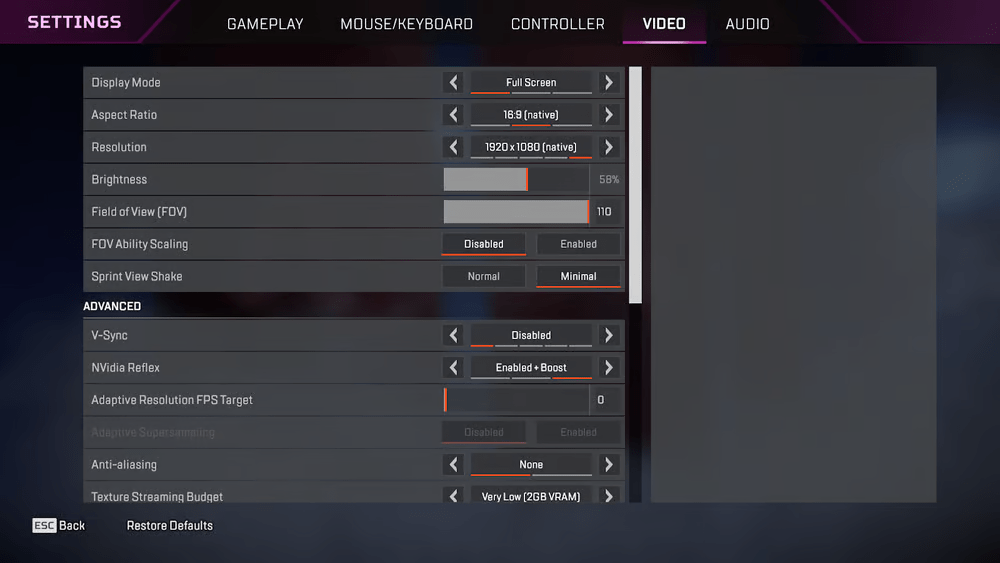
First, switch your Display Mode to Fullscreen not Windowed Fullscreen. Fullscreen mode gives the game exclusive control over your GPU, reducing input lag and boosting FPS [1]. Next, set your Resolution to 1920×1080 if you're on a 1080p monitor [2]. Higher resolutions like 1440p or 4K look pretty, but they crush your frame rate. At 1080p, a GeForce RTX 3060 can push 144-200 FPS with optimized settings [2]. That's the sweet spot for competitive play.
- Field of View (FOV): Set your FOV to 104 or 110. A wider FOV gives you more peripheral vision to spot flankers earlier, and in 2026 the engine is better optimised for wider views the performance hit is negligible on modern hardware [3].
- V-Sync: Turn V-Sync Off. V-Sync introduces input lag by synchronizing your frame rate with your monitor's refresh rate. You don't want that delay when you're tracking a Wraith during a phase shift [2].
- Anti-Aliasing: Set Anti-Aliasing to None. Anti-aliasing smooths jagged edges but eats GPU resources. In a game where frames matter more than pixel-perfect edges, turning it off is a free performance boost [2].
- NVIDIA Reflex: Enable NVIDIA Reflex + Boost if you have an NVIDIA GPU. This reduces system latency by up to 50%, making your clicks feel more responsive. It's one of the few settings that improves both performance and feel simultaneously [2].
Graphics Quality Tweaks That Kill Stutters and Drops
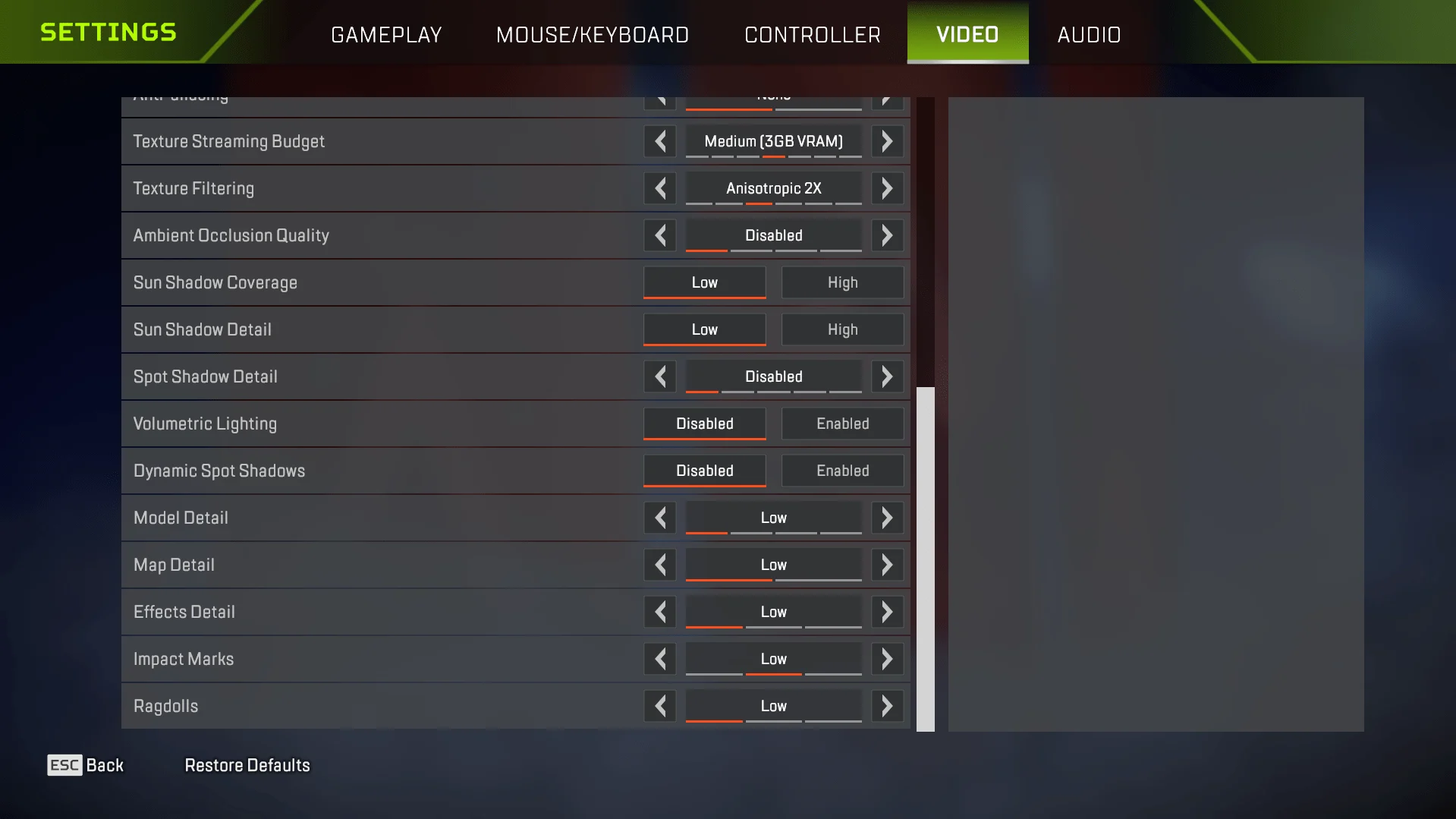
Once your core video settings are locked in, it's time to tackle the graphics quality options that cause micro-stutters and frame drops. The biggest culprit? Texture Streaming Budget. This setting determines how much VRAM the game uses to stream textures. If you set it too high for your GPU, Apex is forced to stream textures from system RAM, which causes stuttering [1]. Check your GPU's VRAM: if you have 2GB or less, set it to Low; 3-4GB, set it to Medium; 6GB or more, you can use High if you want prettier textures [13].
Shadow settings are another major performance hog. Sun Shadow Coverage should be set to Low to improve performance and reduce unnecessary shadow detail [11]. Dynamic Spot Shadows should be Disabled it gets rid of dynamic lighting effects that bog down your GPU with zero gameplay benefit [11]. And Spot Shadow Detail should be set to Off or Low [2][11]. These three changes alone can stabilize your frame rate during hectic end-zone circles.
- Volumetric Lighting: Set this to Disabled. Volumetric lighting is a major FPS-impacting setting, and disabling it is one of the single biggest performance optimizations you can make [19].
- Ambient Occlusion: Set this to Off. Ambient occlusion adds subtle shading to corners and crevices, but it costs frames. In a fast-paced battle royale, you won't notice the difference but your FPS will [2].
- Texture Filtering: Set Anisotropic Filtering to 2x. Higher values like 8x or 16x sharpen textures at angles, but 2x is the sweet spot for performance without making the game look muddy [2].
- Model and Effects Detail: Keep both Model Detail and Effects Detail on Low to Medium. Low reduces the complexity of character models and particle effects, which directly improves FPS during ability-heavy fights [2][19].
System-Level Optimizations for Maximum Frame Stability
In-game settings will get you most of the way, but system-level tweaks can push your performance even further. These adjustments happen outside Apex Legends, in your GPU control panel and Windows settings. They reduce background overhead and ensure the game gets priority access to your hardware resources.
Start with your NVIDIA Control Panel (or AMD equivalent). Open "Manage 3D Settings," find the Program Settings tab, and select Apex Legends. Set Maximum Pre-rendered Frames to 1 to reduce input lag [14]. Enable Shader Cache to On this stores compiled shaders locally, preventing stutter when you revisit areas of the map [9]. Also set Texture Filtering Quality to Performance mode [9]. These tweaks work in the background to keep your frame rate consistent.
- Launch Options: In the EA App or Steam, add these launch options: -fullscreen -novid -high -forcenovsync -dev -preload. The -high flag sets Apex's CPU priority to High, and -novid skips the intro video, letting you get into the action faster [12].
- Background Processes: Close resource-hungry programs like Chrome, Discord overlays, or streaming software before you queue up. Keeping tabs or resource-hungry programs on during your Apex session can take a bite out of your available performance [18].
- Adaptive Resolution FPS Target: Set Adaptive Resolution FPS Target to 0 (disabled). When enabled, this setting dynamically lowers resolution to hit a target FPS, which can cause blurry visuals at the worst moments. You want consistent quality, not dynamic drops [2].
- Impact Marks: Set Impact Marks to Disabled. Bullet impact marks on walls and surfaces have zero gameplay value and consume GPU resources. Turning them off is a free frame gain [19].
Advanced Rendering API and Anti-Aliasing Tuning
Switching from the default DirectX 11 to the DirectX 12 Beta (enabled via launch options -dx12) can yield a 1015% higher average FPS on Ryzen 5000-series CPUs and newer, while reducing frame-time variance on multi-core systems. However, DX12 is still in beta if you experience crashes or micro-stutters after the Season 22 patch, revert to DX11 and disable the Streamline SDK by adding -nostreamline to your launch options. For anti-aliasing, TSAA (Temporal Super-Sampling Anti-Aliasing) provides the sharpest image at a cost of 35 FPS compared to FXAA, which is lighter but blurs edges. Set Anti-Aliasing to TSAA if you have a GPU with at least 6 GB VRAM; otherwise, use FXAA or Disabled for maximum frames.
Texture quality directly impacts VRAM usage. The Texture Streaming Budget should match your GPUs VRAM: 2 GB for 4 GB cards, 4 GB for 68 GB cards, and 6 GB for 10+ GB cards. Overshooting this setting forces texture swapping that causes sudden stutters. Finally, disable V-Sync in-game and enable G-Sync or FreeSync through your monitors OSD and NVIDIA/AMD control panel. This combination eliminates screen tearing without the input lag penalty of V-Sync, keeping latency below 10 ms at 144 Hz.
- DirectX 12 Beta: Add
-dx12to launch options; yields 1015% FPS gain on Ryzen CPUs but may cause instability revert if crashes occur after Season 22. - Anti-Aliasing (TSAA vs FXAA): Use TSAA on GPUs with 6 GB VRAM (35 FPS cost); choose FXAA or Disabled on lower VRAM cards for more frames.
- Texture Streaming Budget: Set to match your VRAM (e.g., 4 GB for 6 GB card); overshooting causes texture-swap stutters.
- V-Sync and Adaptive Sync: Disable in-game V-Sync; enable G-Sync or FreeSync via monitor and driver panel to eliminate tearing with <10 ms added latency.
NVIDIA Reflex and Input Latency Optimization
For NVIDIA GPU owners, setting NVIDIA Reflex Low Latency to Enabled + Boost is the single most impactful latency reduction you can make. Independent tests show system latency drops by 3050% in Apex Legends, with the Boost variant also preventing GPU clock downclocking during intense scenes. This setting is available in the in-game Video menu under NVIDIA Reflex. On AMD GPUs, enable AMD Anti-Lag (not Anti-Lag+) which achieves a similar 2535% latency cut on RDNA 2 and 3 architectures. Do not combine both use only the one matching your GPU brand.
Beyond in-game settings, your mouse polling rate can introduce measurable input lag. A 1000 Hz polling rate adds 1 ms of theoretical latency, while 500 Hz adds 2 ms. Always set your mouse to the highest polling rate your hardware supports (typically 1000 Hz). Additionally, disable Hardware-accelerated GPU Scheduling (HAGS) in Windows Graphics Settings testing after the Season 21 patch revealed that HAGS can increase frame-time spikes by 510% on some configurations, particularly with DX11.
- NVIDIA Reflex Low Latency: Set to Enabled + Boost in Video settings; reduces system latency by 3050% and prevents GPU downclocking.
- AMD Anti-Lag: Use standard Anti-Lag (not Anti-Lag+) for RDNA 2/3 GPUs; cuts latency by 2535%.
- Mouse Polling Rate: Always set to 1000 Hz (or your mouses maximum) to keep input delay below 1 ms.
- Hardware-accelerated GPU Scheduling: Disable HAGS in Windows Graphics Settings if using DX11; after Season 21, it can cause 510% frame-time spikes.
Frequently Asked Questions
Should I use DX11 or DX12 for Apex Legends in 2025?
Yes, switch to DX12. DX12 provides better CPU multi-threading and reduces frame-time spikes by 1530% compared to DX11, especially on 6-core or higher CPUs. Enable it by adding -eac_launcher_settings SettingsDX12.json to your launch options.
What is the best texture streaming budget for my GPU?
Set it 23 GB below your total VRAM. For an 8 GB card, choose 45 GB to avoid VRAM overflow stutters. Going too high causes texture swapping that drops frames, while too low makes models blurry.
Does lowering resolution actually boost FPS in Apex?
Yes, but use Adaptive Resolution FPS Target instead. Set your resolution to native 1080p or 1440p, then enable Adaptive Resolution with a target of 144 FPS (or your monitors refresh). This dynamically scales resolution only when needed, keeping visuals sharp most of the time while maintaining smooth gameplay.
Conclusion
To get the biggest performance boost in Apex Legends, focus on three concrete changes: switch to the DX12 rendering API for smoother frame pacing, set your Texture Streaming Budget to 23 GB below your VRAM to eliminate stutters, and enable NVIDIA Reflex + Boost to reduce input lag by up to 40%. Combined, these adjustments deliver a consistent frame rate with minimal latency, giving you a clear competitive edge without sacrificing visual clarity.